Sift Free
$0forever
A monthly allowance that resets every month. Not a trial.
- 100 files organized per month
- 25 Clean decisions per month
- The full plan preview before anything moves
- Allowance resets monthly
Sift for Mac Launching October 31, 2026
Sift files the clutter on your Mac into folders you approve. Nothing moves until you say so.
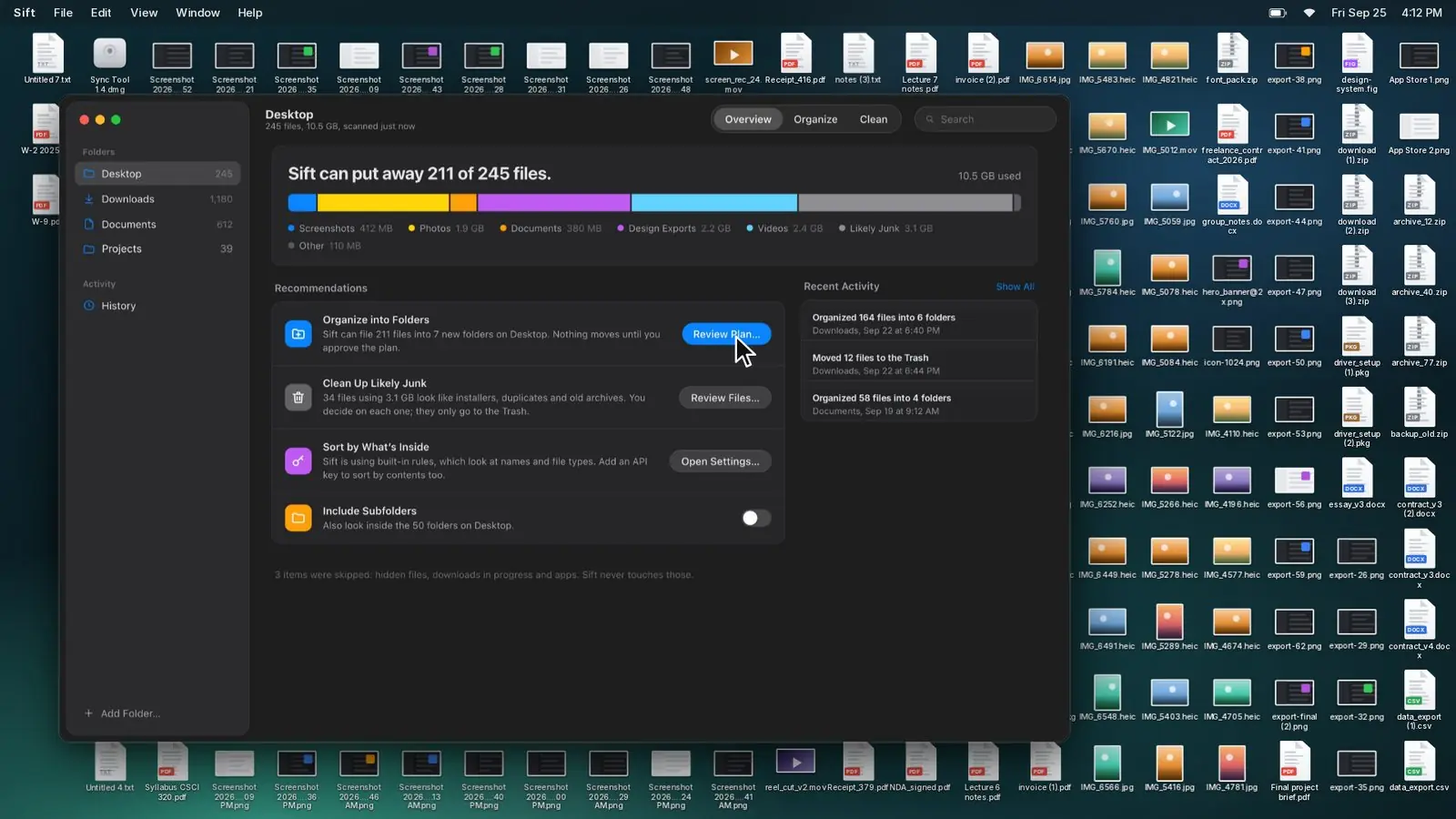
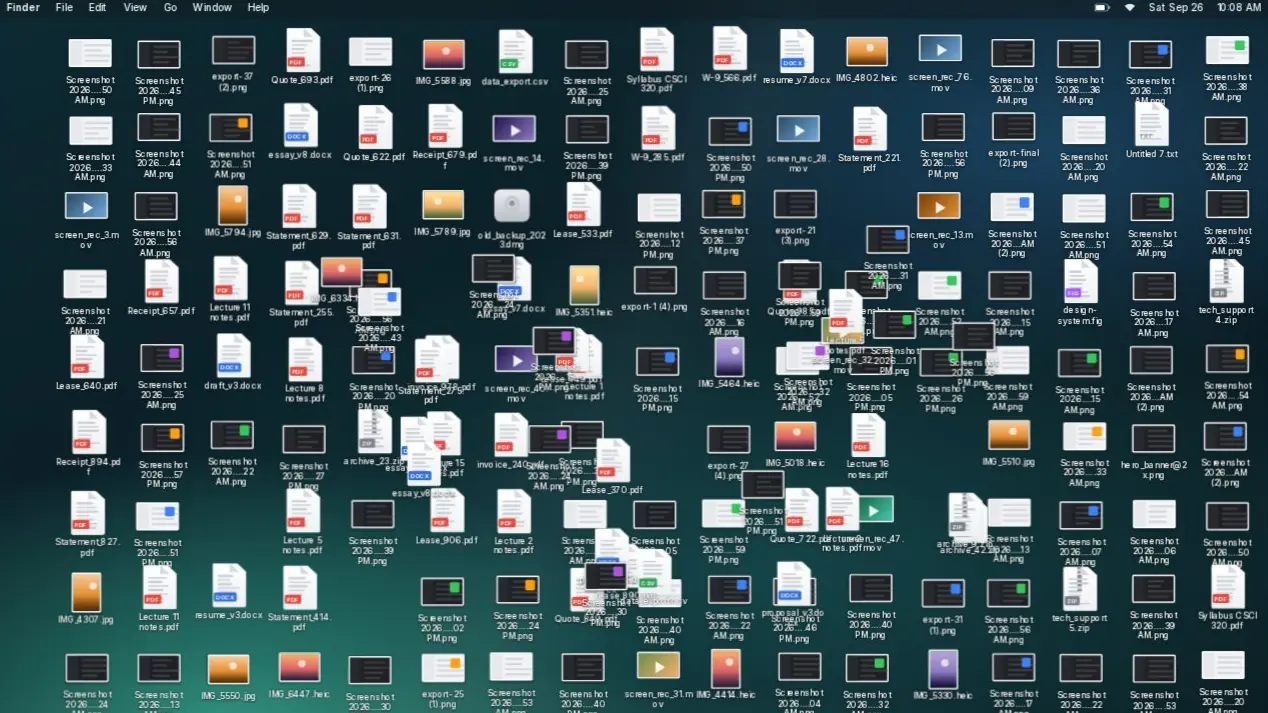
Sift reads all 245 files on the Desktop. Nothing has moved.
Organize
Sift looks at every file’s name and type and works out where it belongs. Hidden files, downloads in progress and apps are skipped. Sift never touches those.

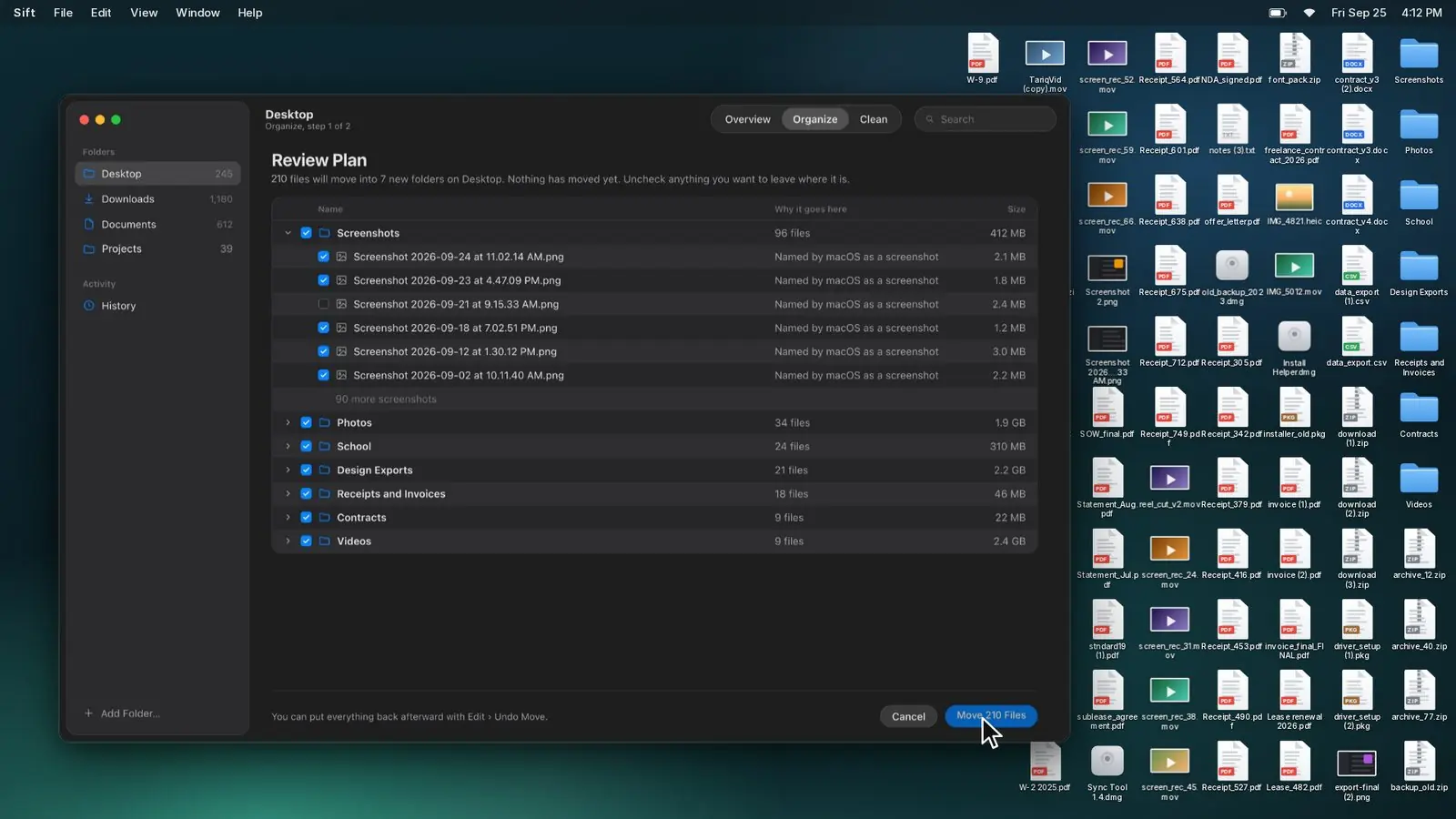
Every file has a destination and a reason. Uncheck anything you want left where it is, and the plan updates before a single file moves.

Files move when you click Move, not before. Every move is written to History, and Undo Move puts all of them back.
You can put everything back afterward with Edit › Undo Move.
Clean
Sift surfaces files that look like leftovers and tells you why it flagged each one. You decide: Keep, Skip or Move to Trash.

2.15 GB will be freed once you empty the Trash.Sift never empties the Trash. You do that when you’re ready.
Tidy Desktop
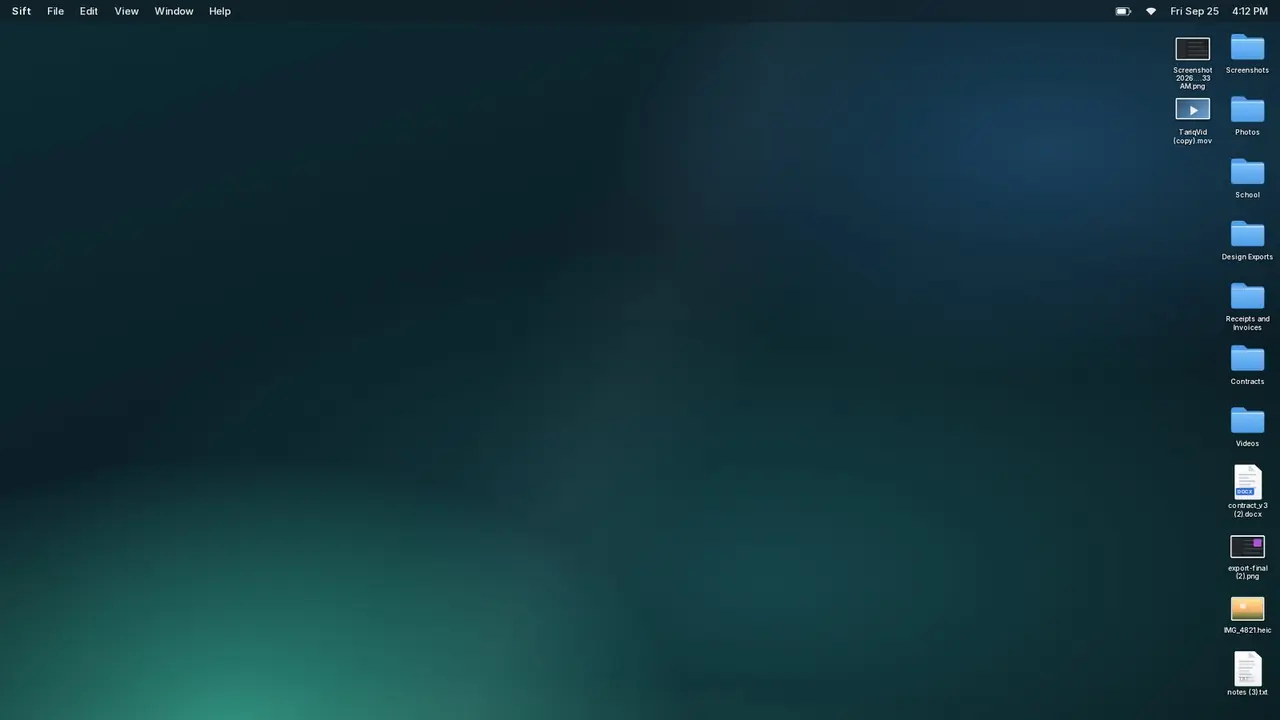
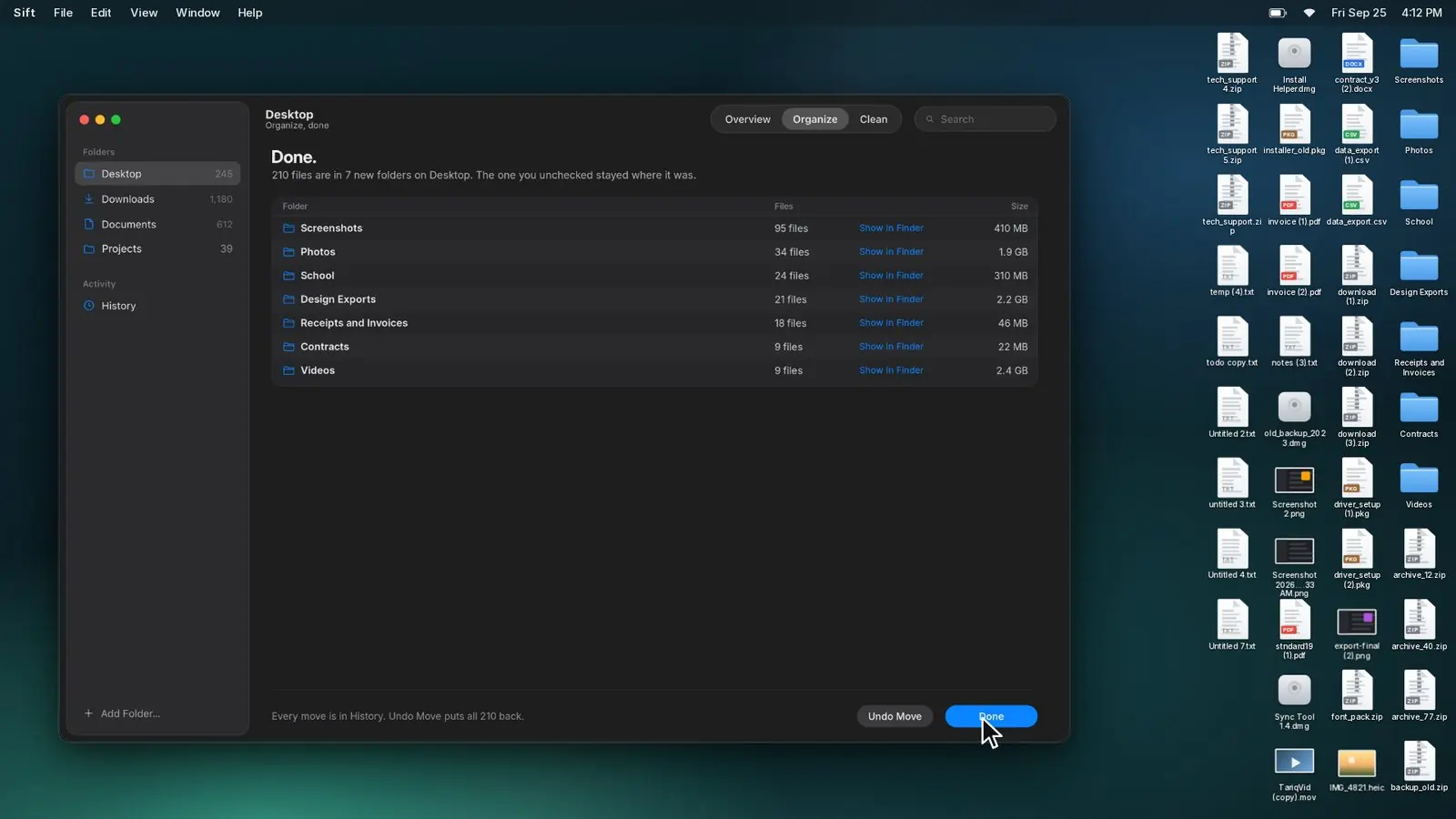
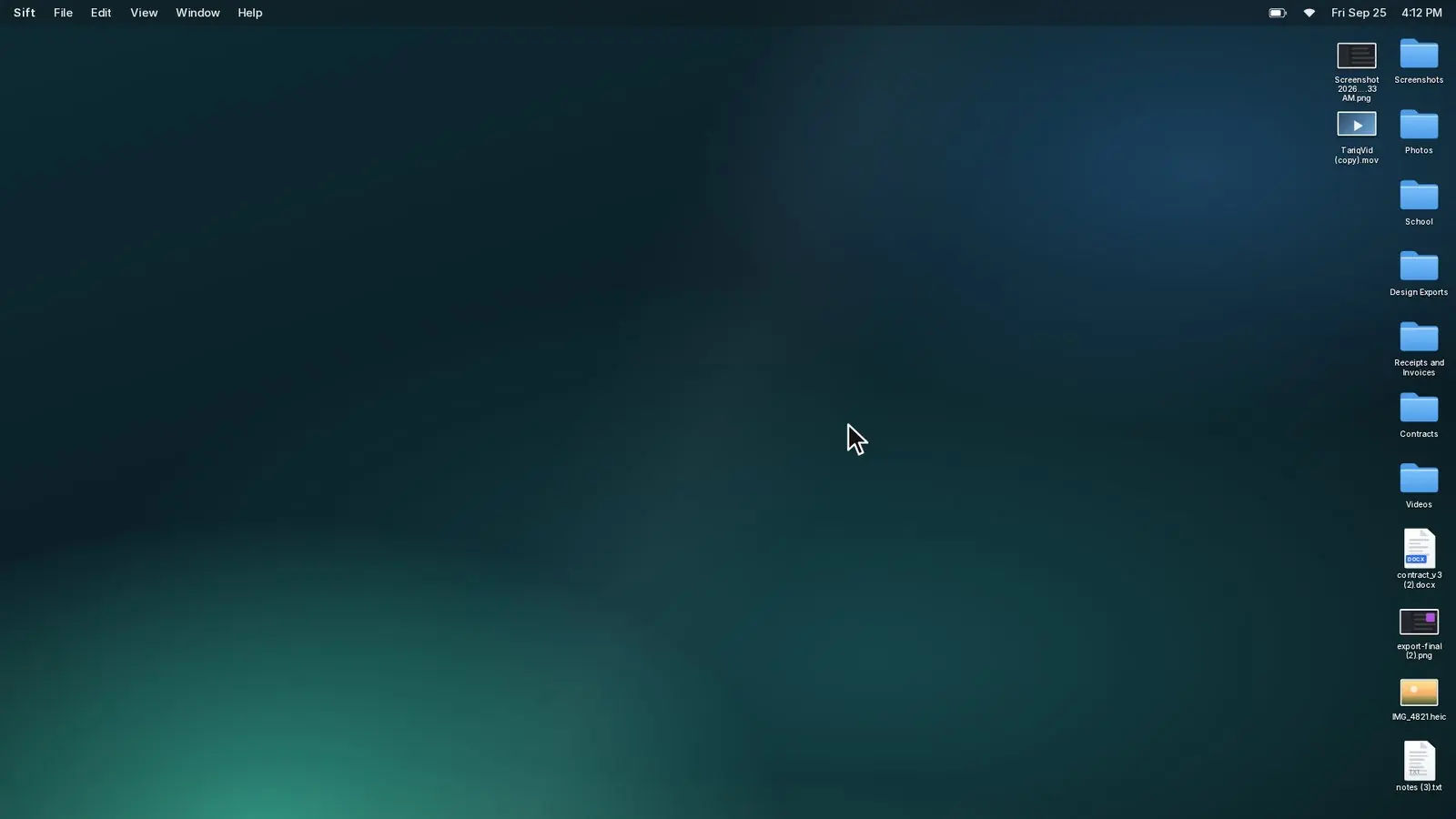
Seven folders you approved: Screenshots, Photos, School, Design Exports, Receipts and Invoices, Contracts, Videos. What you unchecked stayed put.
Trust
These aren’t settings. They’re how Sift works.
Sift proposes a plan. Files move when you click Move.
Sift never empties the Trash. You decide when, from Finder, as you always have.
Undo Move puts a whole move back. Put Back returns anything from the Trash.
It works from file names and types.
Add your own Anthropic API key and Sift can also sort by what’s inside files. Without one, it uses its built-in rules.
Made for the Mac
Press Space to preview a file before you decide.
Command-Z takes back the last decision.
Keep, Skip, Trash. Hands stay on the keys.
Shift-click and Command-click to select several files at once.
Dark Mode, on its own. History of every action. Results are ordinary Finder folders.
Coming soon
Sift starts on the Mac. Next comes the phone, and the files that pile up there: downloads, documents, attachments, archives. Same idea. Sift suggests, you decide.
In development. We’ll share more when it’s ready.
Early concept. Details will change.
Pricing
$0forever
A monthly allowance that resets every month. Not a trial.
$29.99one time
Pre-launch price. Regular price $39.99, one time.
Sift launches October 31, 2026. Join the waitlist and you’ll get one email that day.
FAQ
Sift is planned to launch on October 31, 2026. Join the waitlist and we’ll email you that day.
Sift Free is $0 forever, with 100 files organized and 25 Clean decisions each month. Sift Pro is $29.99 one time at the pre-launch price ($39.99 regular), with unlimited Organize and Clean. There is no subscription.
Any Mac running macOS 14 Sonoma or later.
No. Sift’s built-in sorting runs on your Mac and works from file names and types. If you want Sift to sort by what’s inside files, you can add your own Anthropic API key. That’s optional.
No. Organize only moves files into folders you approve. Clean moves files to the Trash, where Put Back still works. Sift never empties the Trash; that stays your call.
Every action is recorded in History. Undo Move puts a whole move back, and Command-Z undoes your last decision.
One email on launch day. Nothing else.
Join the waitlist. We’ll send one email on launch day, and nothing else.